How to use Docker Model Runner with Promptrak
This guide explains how to use the Docker Model Runner with Promptrak so you can run models in containers and drive them from Promptrak no matter where you are.
Prerequisites
- Docker Desktop installed and running
- Promptrak account in good standing
Enable and Configure Docker Model Runner
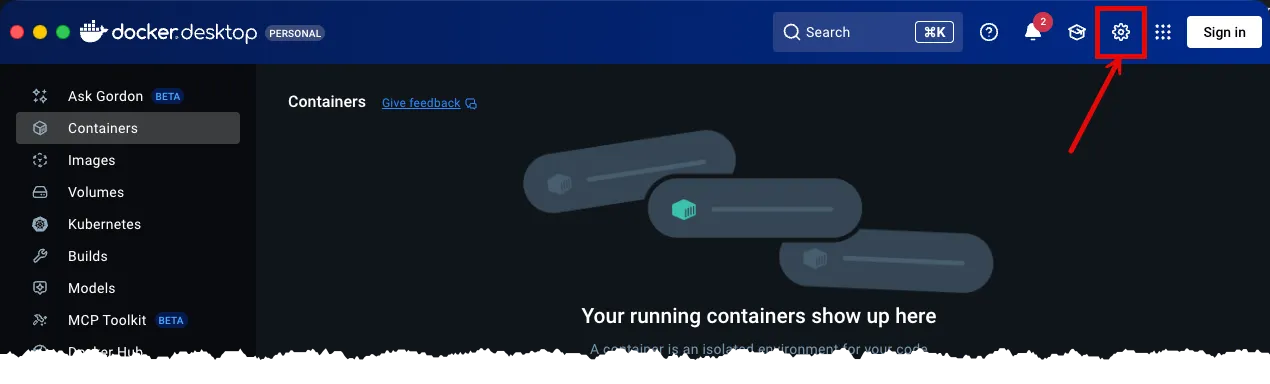
- With Docker Desktop open, click the Settings button. Doing so will open the Settings view.
-
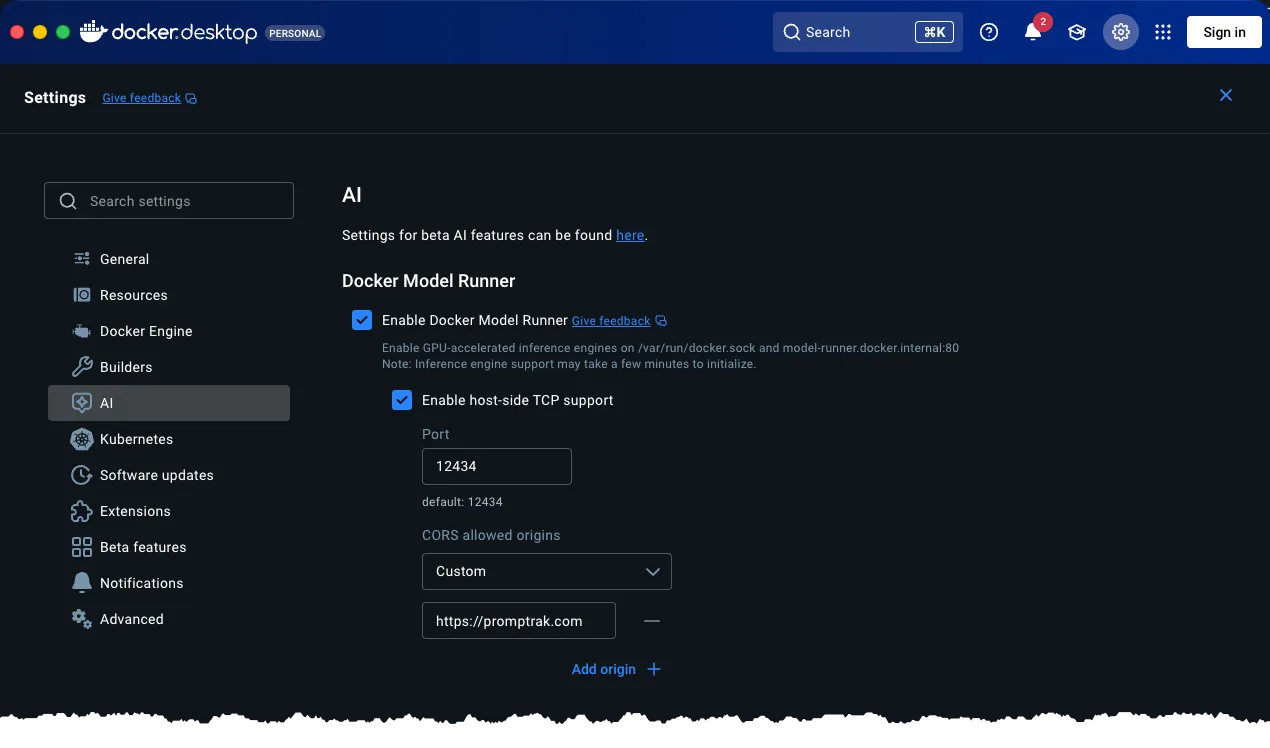
With the settings view open, click the AI option in the left navigation. Doing so will show the Docker Model Runner settings. Configure its settings to match the screenshot below.
- Enable Docker Model Runner by clicking the checkbox.
- Enable Host-side TCP support. We set our port to
12434. - Set CORS to
Customand add the following originhttps://promptrak.com. - Click the APPLY and CLOSE buttons.
-
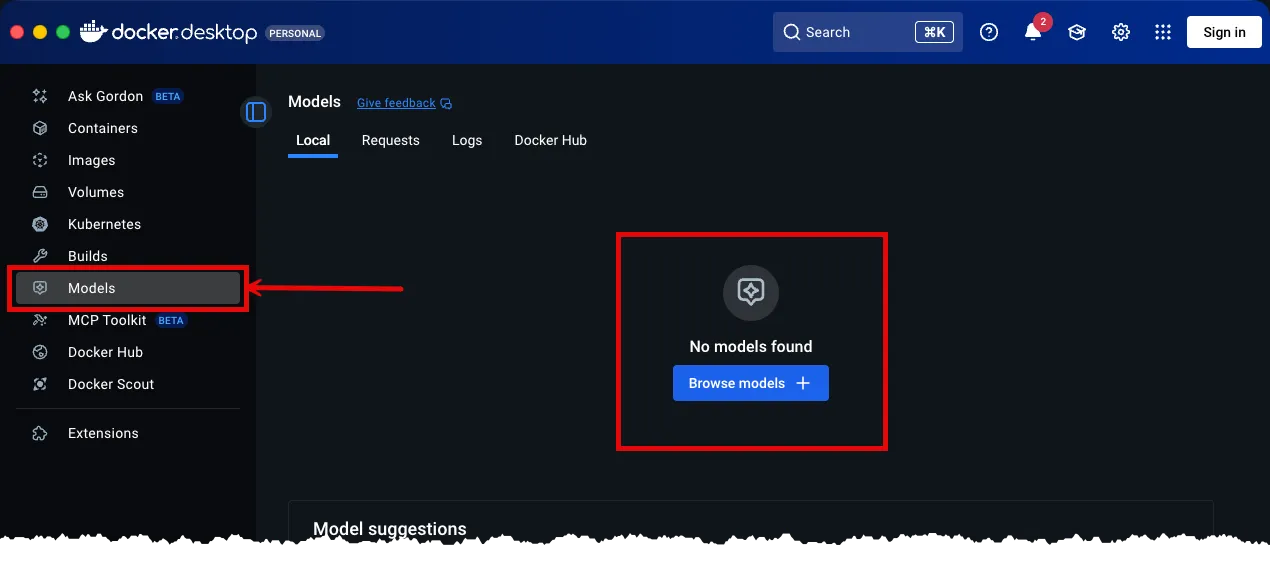
With the settings view closed, click the Models option in the left navigation. Doing so will open the Models view.
- Click the BROWSE MODELS button. Doing so will show the Models search view.
-
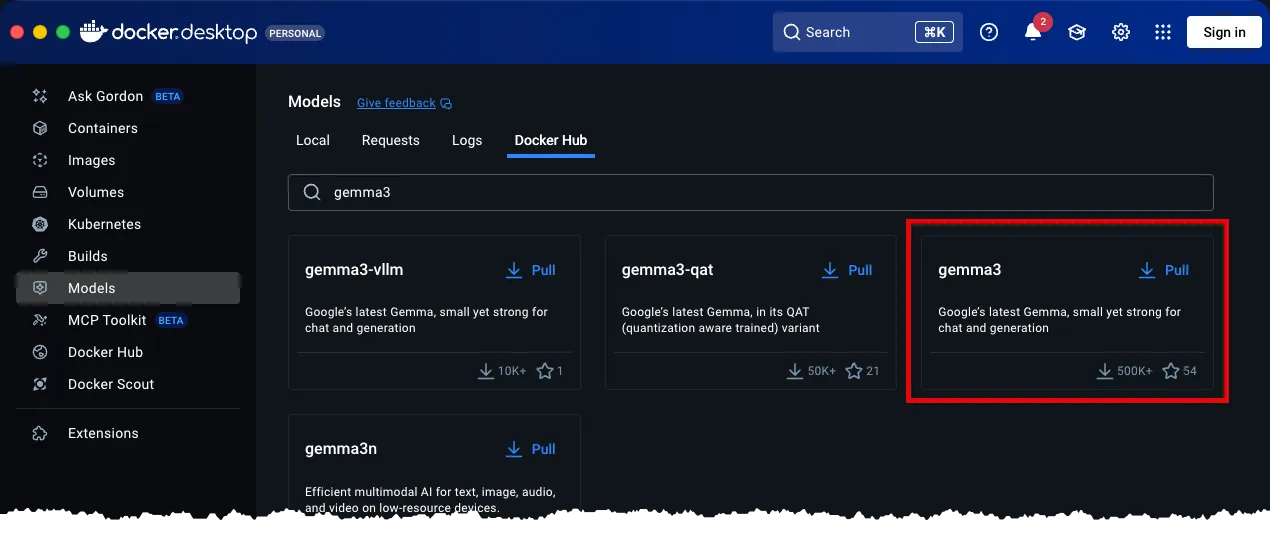
With the Models Search view open, search for a model and pull its container. We’re going to use
Gemma3because of its smaller size.- Search for
Gemma3by typing it into the Search field. Doing so will filter the list of models. - Click the PULL text located within the Gemma3 model card to begin downloading the models container. Doing so will update the models view with a download progress bar.
- Search for
- Wait for Docker Desktop to download the Gemm3 model.
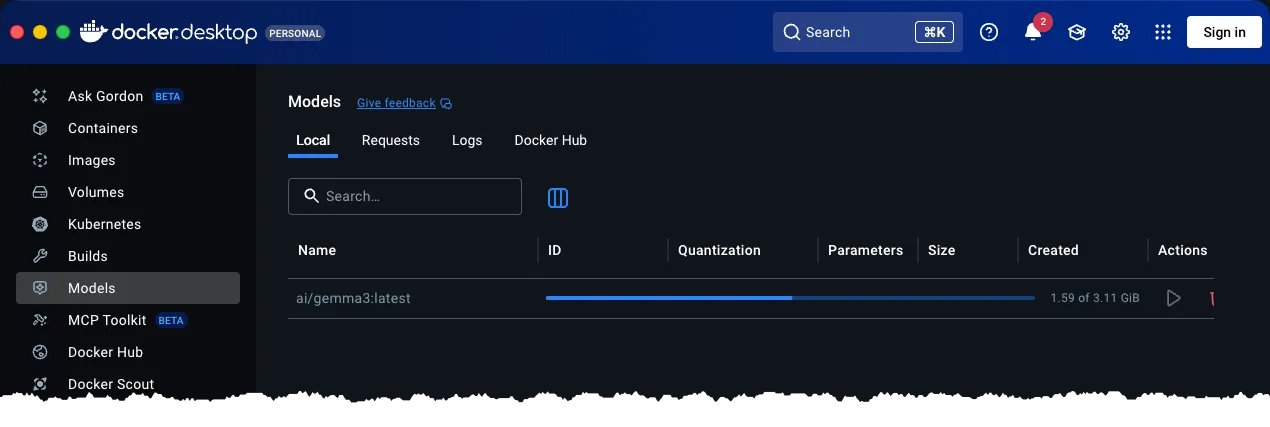
- Once downloaded, click the Run button. Doing so will show the Model Chat view.
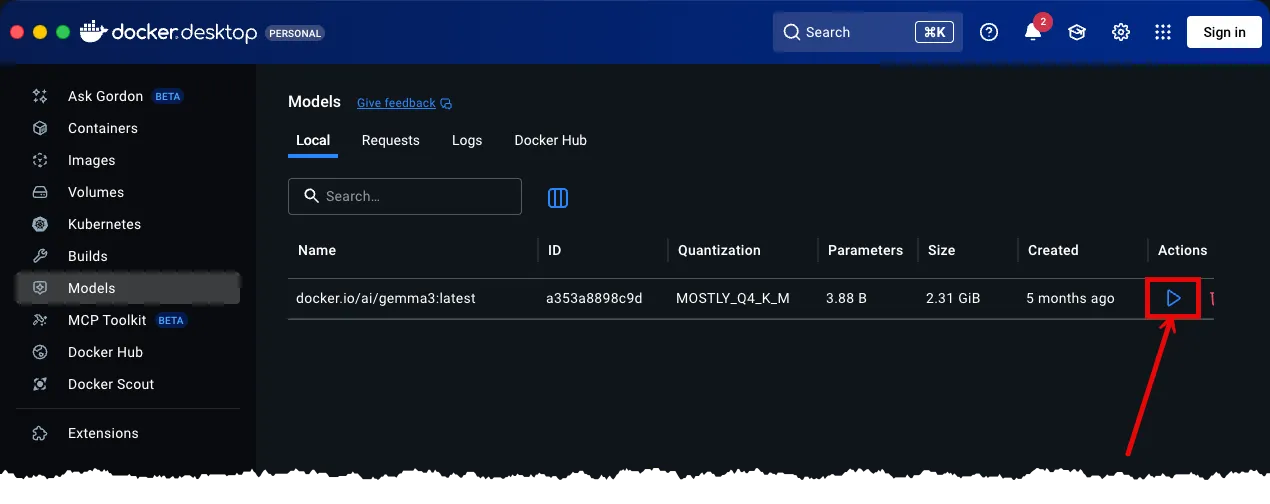
-
Enter a query and hit the Submit button.
- Enter
What AI Model are you?into the Ask a question… input.
- Enter
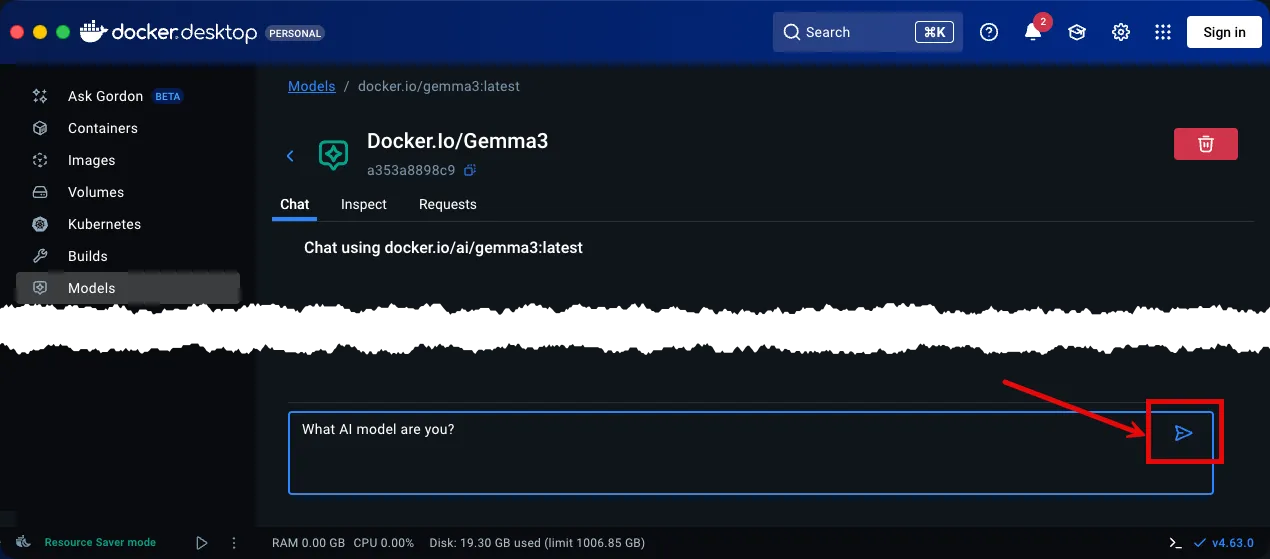
- You should see a response similar to the one we received in the screenshot below.
Getting this far means you’ve successfully configured Docker Model Runner and have queried your AI docker model through chat. Next we’ll configure Promptrak to use this model!
Create and Configure Promptrak
- With Promptrak opened, open the Account Menu and click Settings. Doing so will open the Settings view.

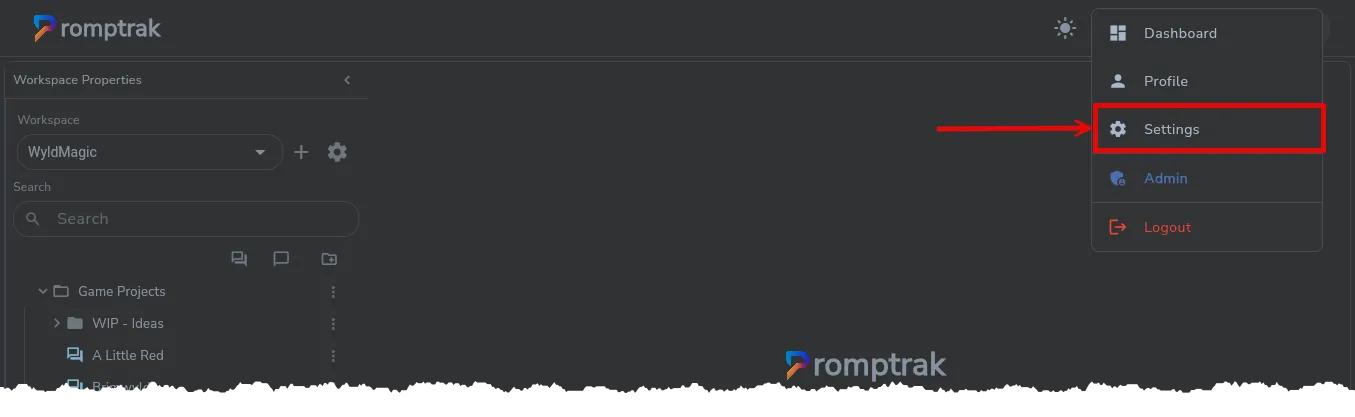 2. Under Local models click Add Runner button. Doing so will open the Add Runner dialog.
-
Configure your Local Model Runner
- Click the ADD button. Doing so will save the Local Model Runner configuration and add it to the Local Models list.
-
Run your model in Docker (e.g. start the container that serves the model API). Note the host and port you expose (e.g.
localhost:8080). -
In Promptrak, add or select a model runner of type “Docker Model Runner” (or equivalent name in your Promptrak version).
-
Configure the runner with the Docker service URL (e.g.
http://localhost:8080/v1or whatever path your image uses) and any auth or model-name settings. -
Select the model in Promptrak so it matches the model served by the container.
-
Run prompts from Promptrak; they are sent to the Dockerized service and responses appear in Promptrak.
Exact setup (image name, env vars, port) depends on the Docker image you use. See Promptrak’s docs for the Docker runner’s required fields and options. If you get connection errors, verify the container is up, the port is correct, and the API path matches what Promptrak is calling.